← 心拍のつなぎかたへAll connection routes
HEART RATE SETUP
PC1本でつなぐ(iron-heart)PC-Only Route (iron-heart)
無料ツールiron-heartひとつで、心拍計→VRChatを完結させるいちばんお手軽なルートです。アカウント登録もクラウドもスマホも不要、起動して心拍計を選ぶだけ。所要5分。
The easiest route: one free tool, iron-heart, takes your monitor's heart rate straight into VRChat. No account, no cloud, no phone — just launch it and pick your monitor. About 5 minutes.
0用意するものWhat you need
- BluetoothのあるWindows PC — 無ければUSBのBluetoothアダプタ(1,000円前後)を挿せばOK
- Bluetooth対応の心拍計 — 例: Polar H10 / COOSPO HW9 / Mi Bandシリーズ(Mi Bandはバンド本体の「設定 → 心拍数を共有」をON)
- PIXEL PULSEを入れたアバター(導入はこちら)— バージョンは問いません
iron-heartは有志が無料公開しているオープンソースツールです(英語UI・黒い画面にグラフが出るタイプ)。心拍計を持っていなくても「ダミーモード」でテスト表示ができます。
- A Windows PC with Bluetooth — a cheap USB Bluetooth adapter works if it has none
- A Bluetooth heart rate monitor — e.g. Polar H10 / COOSPO HW9 / Mi Band series (on the Mi Band, turn on "Share heart rate" in the band's own settings)
- An avatar with PIXEL PULSE installed (setup guide) — any version works
iron-heart is a free open-source community tool (English, terminal-style UI with charts). No monitor yet? Its "dummy mode" can send test values.
1iron-heartをダウンロードするDownload iron-heart
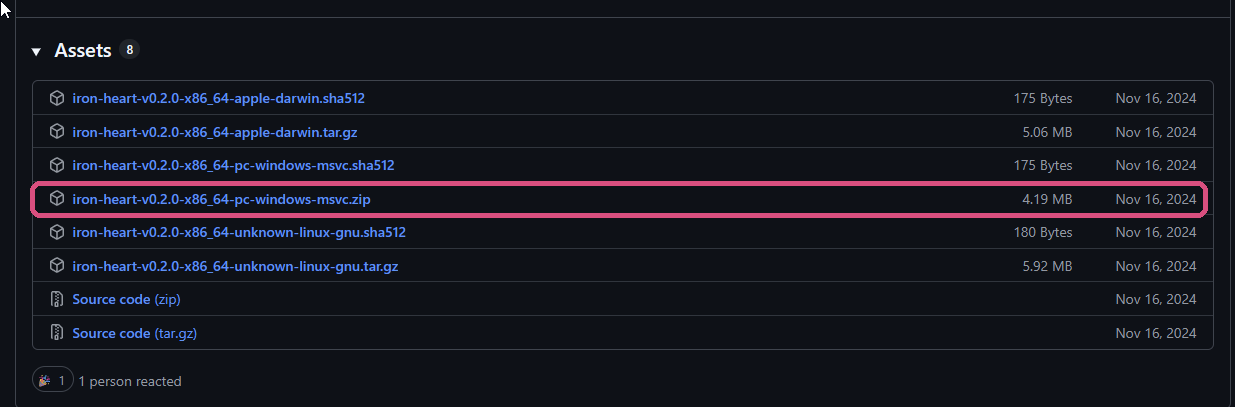
iron-heartのリリースページを開き、「Assets」の一覧からファイル名に「windows」と入っているzip(例: iron-heart-v0.2.0-x86_64-pc-windows-msvc.zip)をダウンロードして、好きな場所に展開します。インストールは不要、中の実行ファイルを起動するだけです。
「.sha512」で終わるファイルや「apple」「linux」と付くものは使いません。
Open the iron-heart releases page and, under "Assets", download the zip whose name contains "windows" (e.g. iron-heart-v0.2.0-x86_64-pc-windows-msvc.zip). Unzip it anywhere — no installer, just run the executable inside.
Skip the ".sha512" files and anything marked "apple" or "linux".
初回起動時にWindowsの「WindowsによってPCが保護されました」(SmartScreen)が出ることがあります。「詳細情報」→「実行」で起動できます。
Windows SmartScreen may warn on first launch — click "More info" → "Run anyway".
2心拍計を選ぶPick your monitor
- 心拍計を体に装着します(電源が入っていれば自動で見つかります)
- iron-heartを起動すると、見つかった心拍計が一覧に出ます
- 自分の心拍計を選んで接続します
iron-heartの画面はマウスではなく矢印キー(↑↓)とEnterで操作します。画面下に操作キーの一覧が出ています。
Windowsの設定でのBluetoothペアリングは不要です(アプリが直接見つけます)。
- Put on your heart rate monitor (powered on = it will be discovered automatically)
- Launch iron-heart — compatible monitors appear in a list
- Select yours to connect
iron-heart is keyboard-driven: use the arrow keys (↑↓) and Enter, not the mouse. The key hints are shown at the bottom of the window.
No Bluetooth pairing in Windows settings is needed — the app finds the monitor directly.
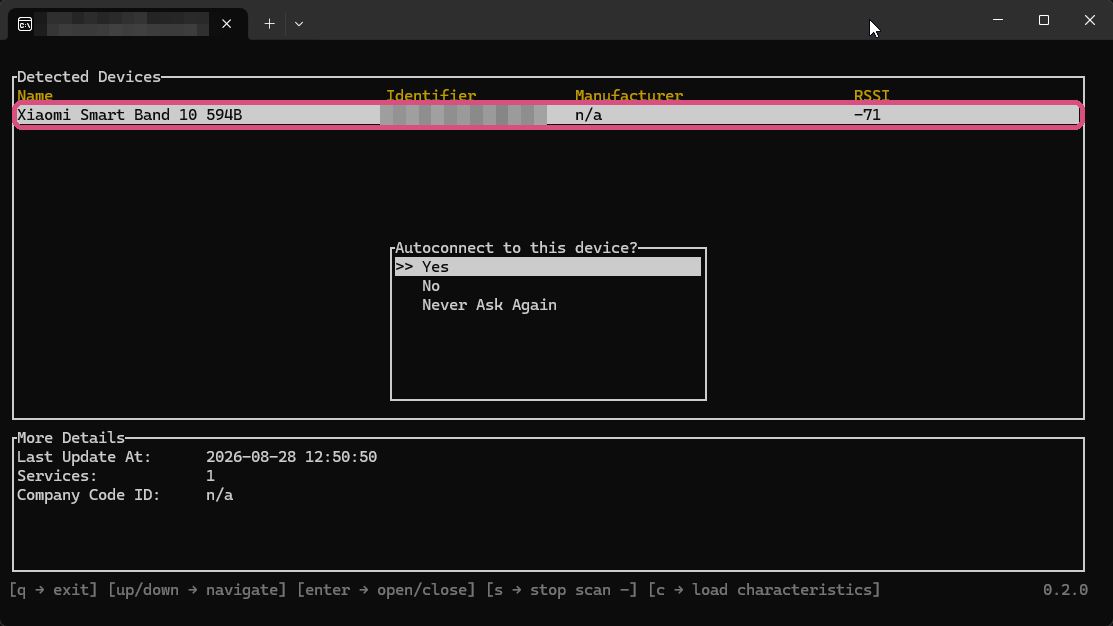
「Autoconnect to this device?(次回から自動でつなぐ?)」と聞かれたら Yes がおすすめです。次回からは起動するだけでつながります。
When asked "Autoconnect to this device?", pick Yes — from then on it reconnects automatically at launch.
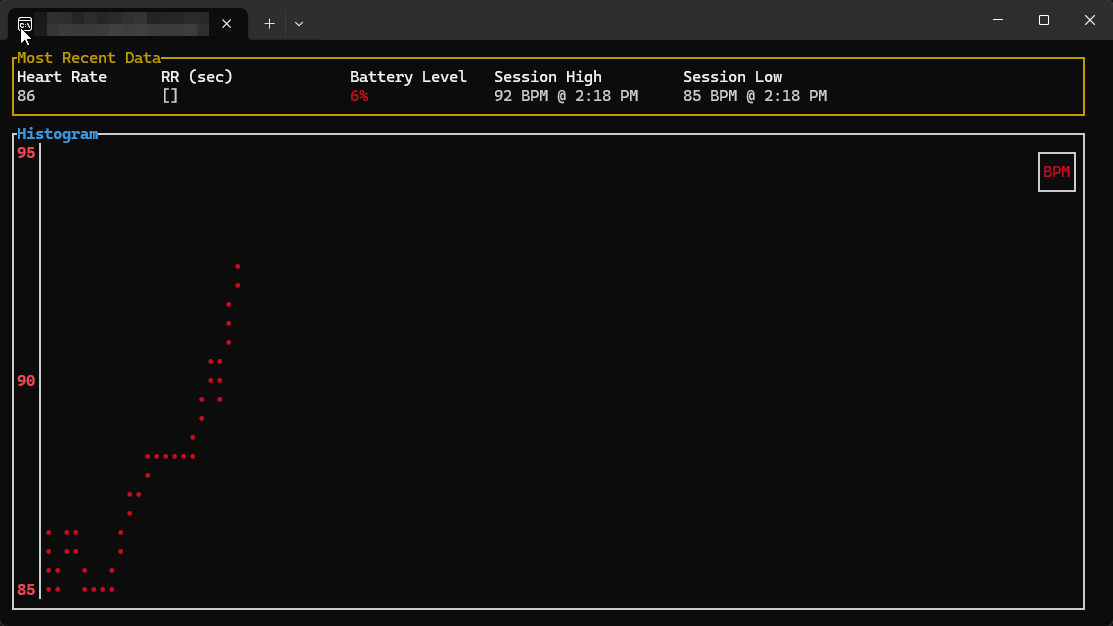
心拍計をPulsoidアプリやスマホにつないだままだと一覧に出ません。Bluetooth心拍計は同時に1つの相手としかつながりません。
If the monitor is still connected to another app or your phone, it won't appear — BLE monitors connect to one client at a time.
3VRChat側でOSCを有効にするEnable OSC in VRChat
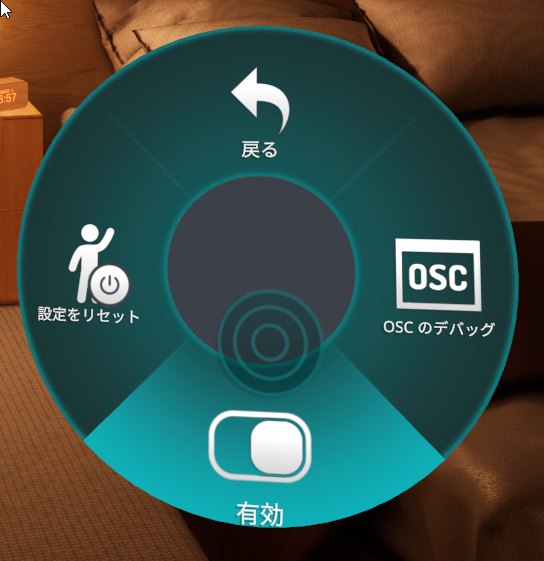
VRChatの中で、アクションメニュー(Rボタン/右スティック押し込み等)→ Options → OSC → 有効 をONにします。最初の1回だけでOKです。
In VRChat, open the Action Menu → Options → OSC → Enabled and turn it ON. You only need to do this once.
4できあがりDone!
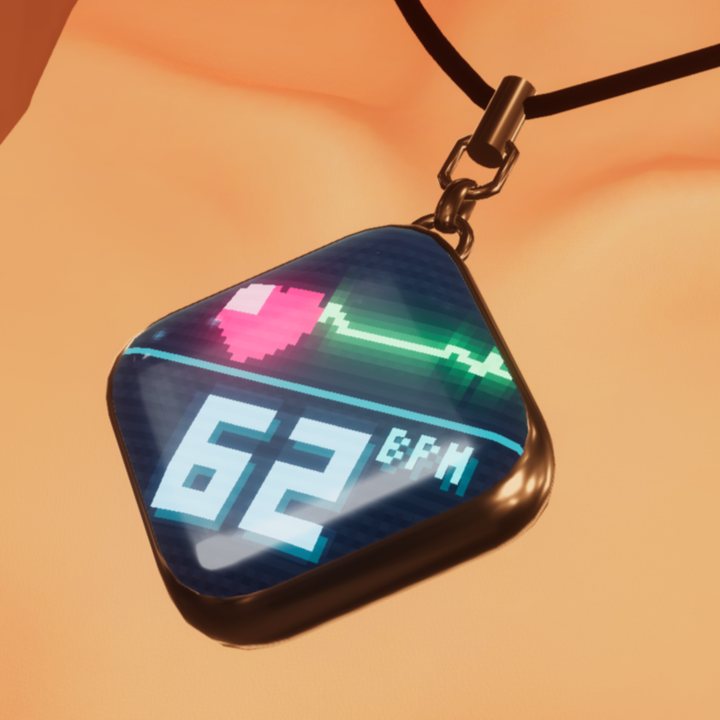
心拍が届き始めると、ペンダントは自動で心拍ページに切り替わります。胸元で数字が動いていたら完成です。
As soon as heart rate arrives, the pendant switches to the heart rate page automatically. If the number on your chest is moving — you're done.
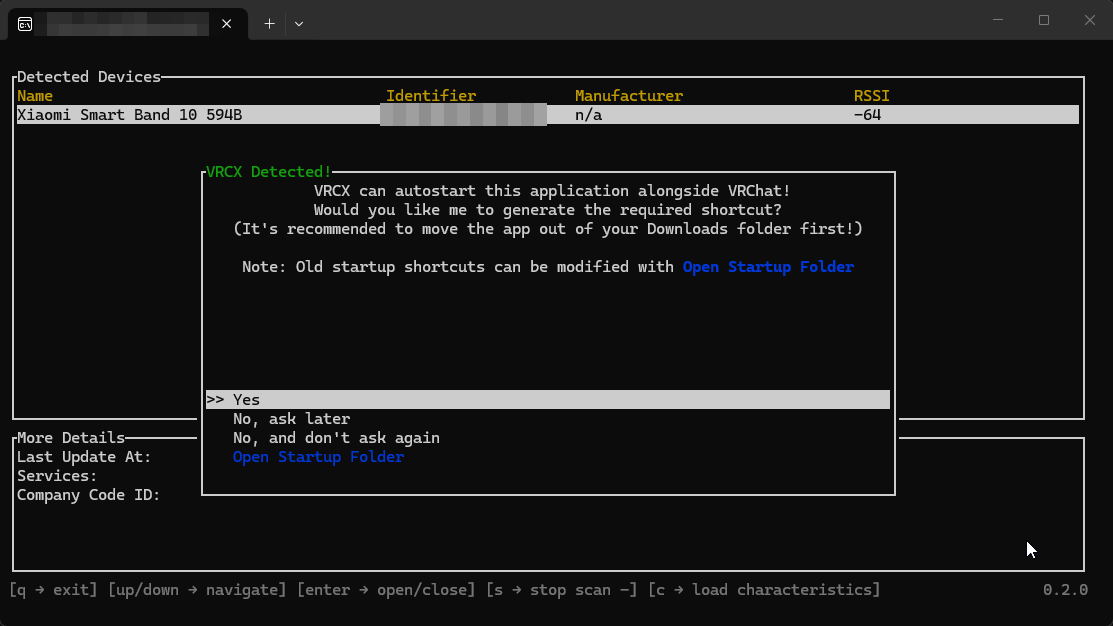
便利機能: VRCXを使っている場合、iron-heartが起動時に自動で検出して「VRChatと一緒に自動起動する?」と聞いてくれます。Yesを選ぶだけで、次回からVRChatの起動と同時にiron-heartも立ち上がります。
Tip: if you use VRCX, iron-heart detects it on launch and offers to auto-start alongside VRChat — just pick Yes.
?うまくいかないときIf it doesn't work
- 一覧に心拍計が出ない → 心拍計の装着・電池を確認。他のアプリやスマホが心拍計を掴んでいないかも確認(STEP 2の注意)。PCのBluetoothがONかも確認
- グラフは動くのにペンダントに出ない → VRChatのOSC有効(STEP 3)を確認。それでもダメなら同じ画面の「設定をリセット(Reset Config)」を押してアバターを選び直してください
- 切断が頻発する → 心拍計とPCの距離・障害物を減らしてください。USBアダプタの場合は延長ケーブルで位置を変えると改善することがあります
- もっと詳しく → 導入ガイドのよくある質問
- Monitor not in the list → check it is worn and charged, that no other app or phone is holding it (see STEP 2), and that the PC's Bluetooth is on
- Chart moves but the pendant doesn't → check OSC is enabled (STEP 3). If it still fails, press "Reset Config" on the same OSC page and re-select your avatar
- Frequent disconnects → reduce distance/obstacles between monitor and PC; with a USB adapter, a short extension cable to reposition it often helps
- More details → the FAQ in the main guide