← 心拍のつなぎかたへAll connection routes
HEART RATE SETUP
無料でつなぐ(Pulsoid + VRCOSC)The Free Route (Pulsoid + VRCOSC)
Pulsoidの無料プランと、無料アプリVRCOSCを組み合わせる定番ルートです。課金は一切ありません。所要15分。
The classic route: Pulsoid's free plan plus the free VRCOSC app. No payment anywhere. About 15 minutes.
0用意するものWhat you need
- Bluetooth対応の心拍計 — 例: Polar H10 / COOSPO HW9 / Mi Bandシリーズ(Mi Bandはバンド本体の「設定 → 心拍数を共有」をON)。対応機種はPulsoidの対応デバイス一覧で確認できます
- Windows PC(VRChatを動かすPC)
- スマホ(心拍計とつなぐPulsoidアプリ用。PCにBluetoothがあればスマホなしでもOK — STEP 2参照)
- PIXEL PULSEを入れたアバター(導入はこちら)
- A Bluetooth heart rate monitor — e.g. Polar H10 / COOSPO HW9 / Mi Band series (on the Mi Band, turn on "Share heart rate" in the band's own settings). See Pulsoid's supported devices
- A Windows PC (the one running VRChat)
- A smartphone (for the Pulsoid app that talks to the monitor; if your PC has Bluetooth you can skip the phone — see STEP 2)
- An avatar with PIXEL PULSE installed (setup guide)
1Pulsoidのアカウントを作る(無料)Create a Pulsoid account (free)
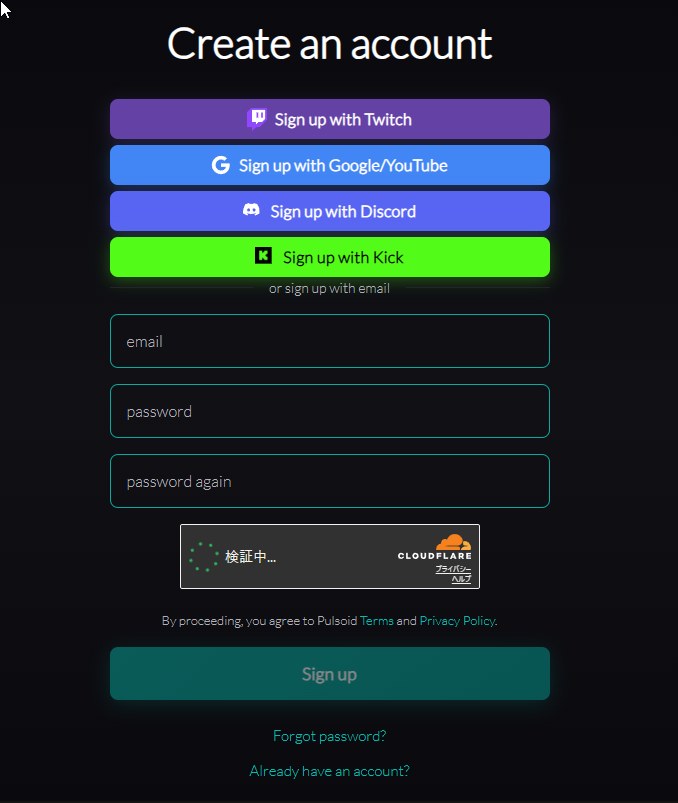
pulsoid.net でアカウントを作ります。Twitch / Google / Discordのアカウントでもメールでも登録できます。無料プランのままでOKです。
Create an account at pulsoid.net — Twitch / Google / Discord or email all work. The free plan is enough.
2心拍をPulsoidに届けるGet your heart rate into Pulsoid
どちらか1つでOKです。
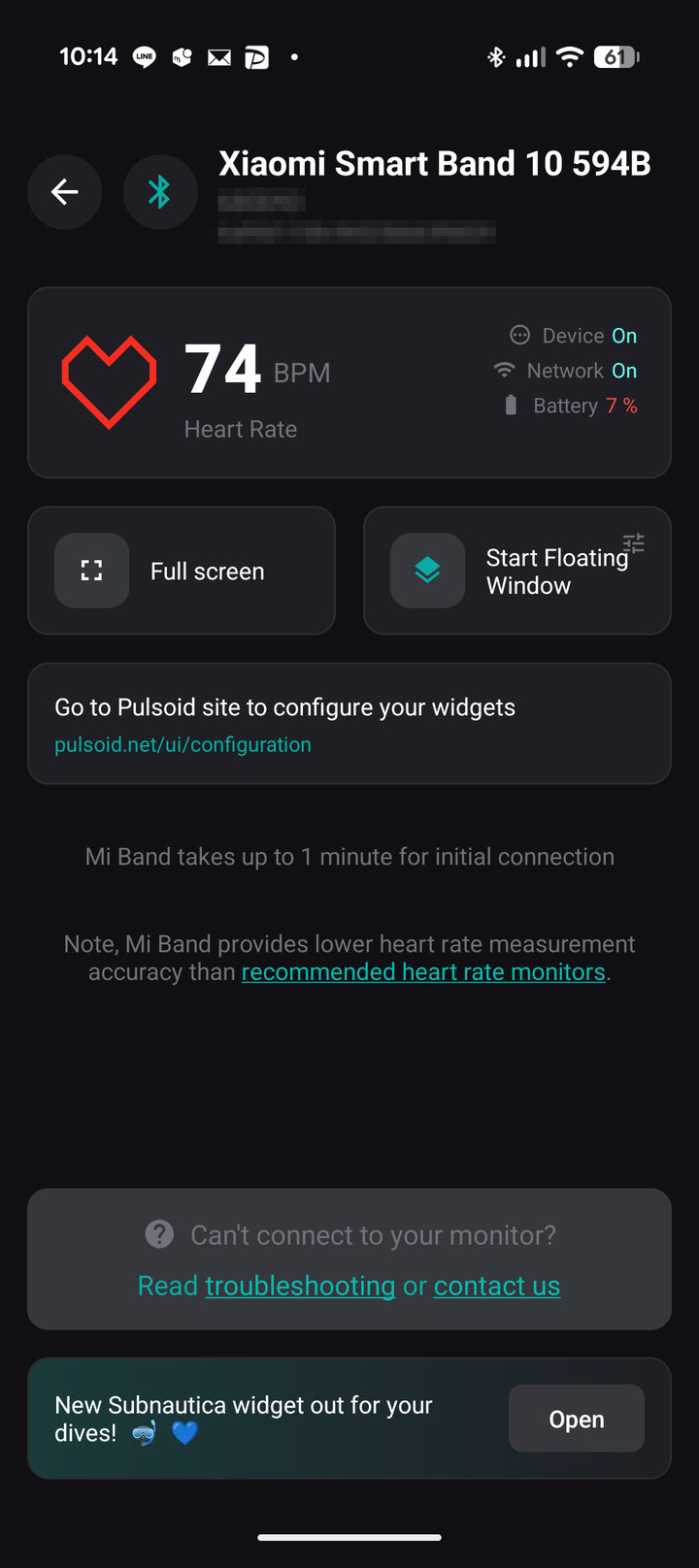
- A. スマホの Pulsoid アプリを使う(定番) — アプリ(iOS/Android)を入れてSTEP 1のアカウントでログインし、心拍計を接続します。スマホに心拍数が表示されればOK
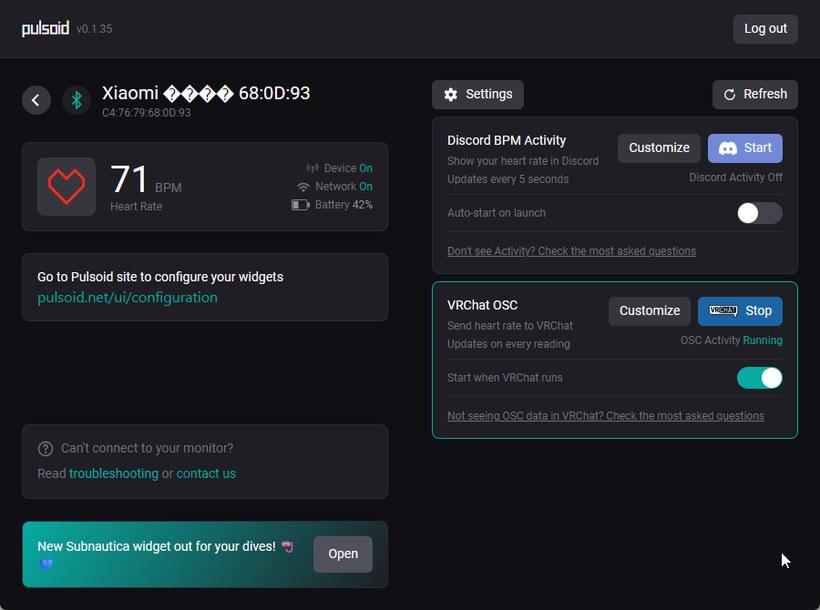
- B. PCの Pulsoid for Desktop を使う — PCにBluetoothがあるなら、Pulsoid for Desktopでも心拍計をつなげます(心拍計との接続は無料の範囲です。有料なのはDesktop内の「VRChat OSC」送信機能で、このルートでは使いません)
Pick either one.
- A. The Pulsoid phone app (typical) — install the app (iOS/Android), log in with the STEP 1 account, and connect your monitor. Seeing your BPM on the phone means it works
- B. Pulsoid for Desktop on your PC — if your PC has Bluetooth, Pulsoid for Desktop can connect the monitor too (connecting the monitor is free; the paid part is Desktop's own "VRChat OSC" sender, which this route does not use)
3VRCOSCを入れるInstall VRCOSC
VRCOSCのリリースページから「VRCOSCSetup.exe」をダウンロードして実行し、インストールします。無料です。
Download "VRCOSCSetup.exe" from the VRCOSC releases page, run it and install. It's free.
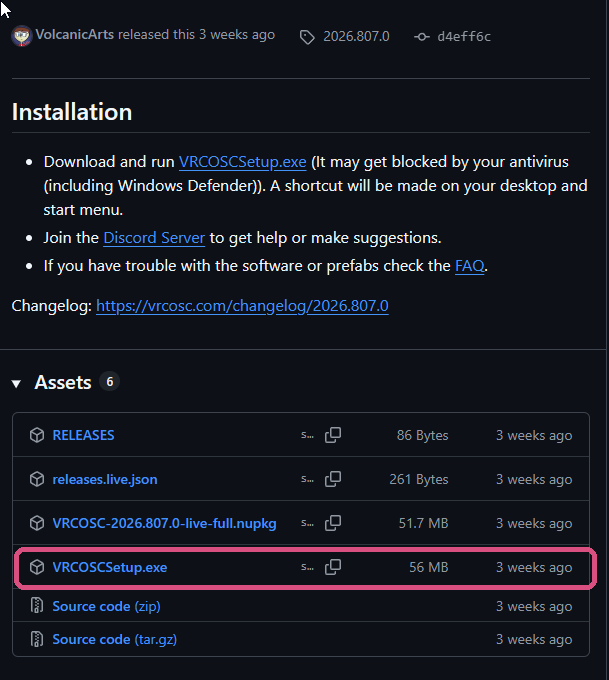
ウイルス対策ソフト(Windows Defender含む)に止められることがあります。開発元も告知している既知の挙動です。
Your antivirus (including Windows Defender) may flag it — a known behavior the developer notes on the release page.
4PulsoidモジュールをONにして連携するEnable the Pulsoid module and link it
- VRCOSCを起動して、モジュール一覧から「Pulsoid」を探してチェックを入れます
- Launch VRCOSC, find "Pulsoid" in the module list and tick it
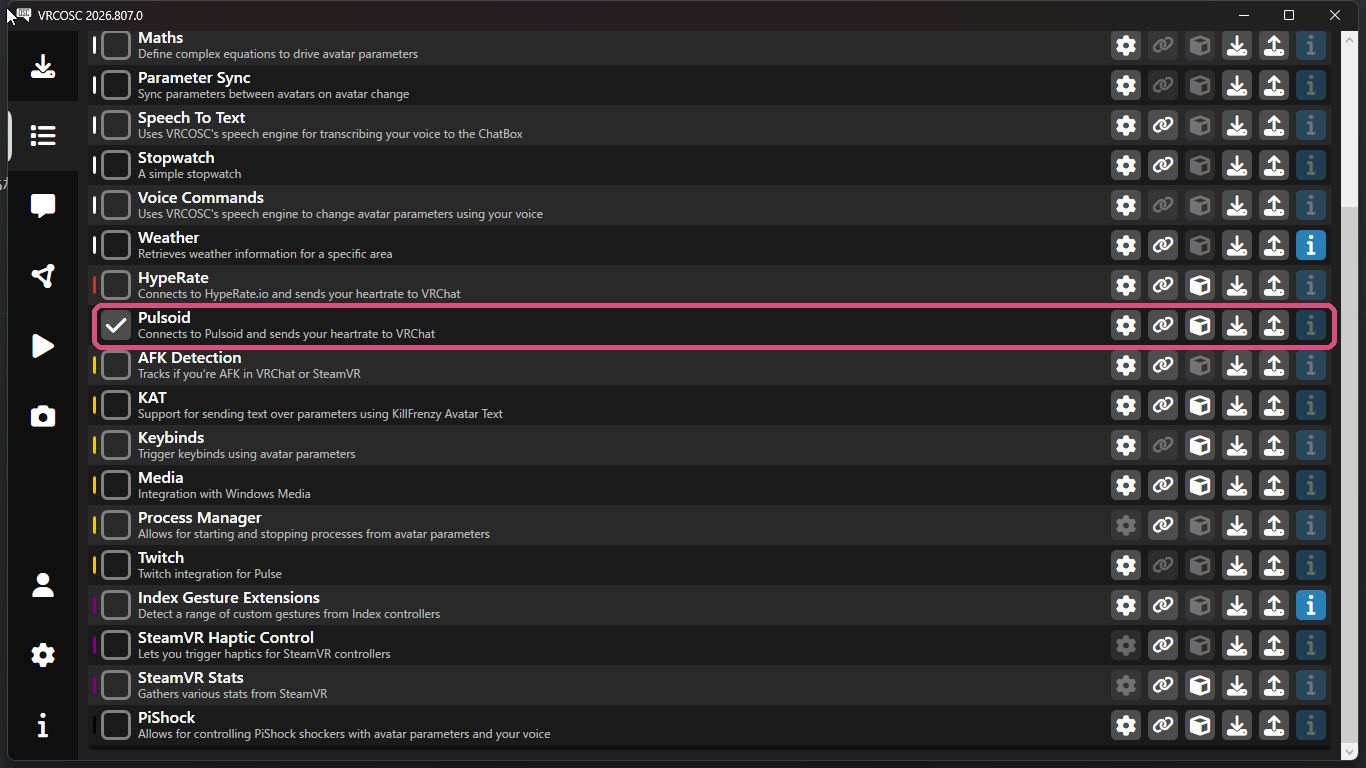
- Pulsoid行の歯車(設定)を開いて、「Obtain Access Token」を押します — ブラウザでPulsoidのページが開きます
- Open the gear (settings) on the Pulsoid row and press "Obtain Access Token" — a Pulsoid page opens in your browser
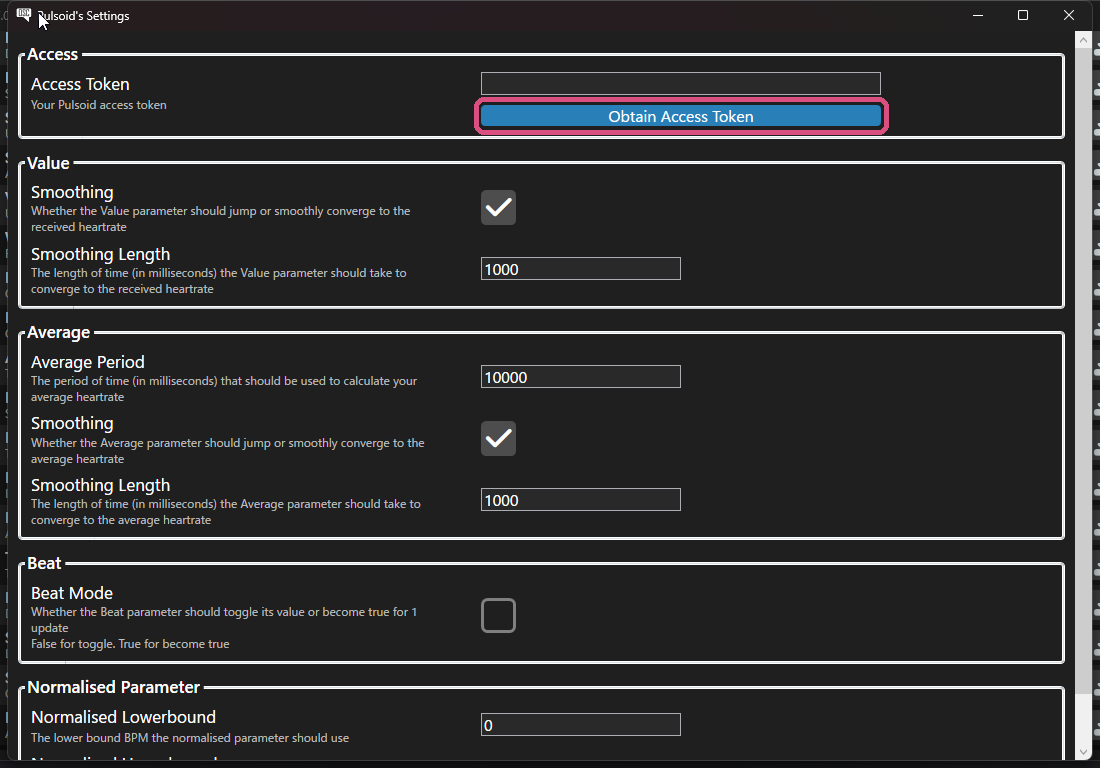
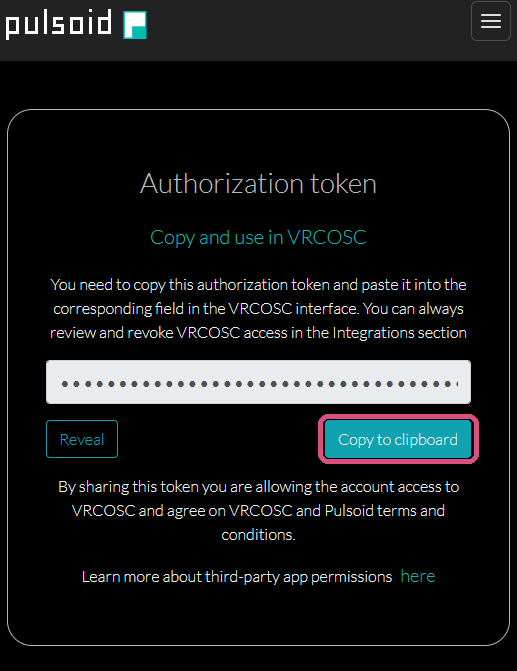
- 開いたページ(STEP 1のアカウントでログインしていること)で「Copy to clipboard」を押してトークンをコピーし、VRCOSCに戻って「Access Token」欄に貼り付けます
この連携は「心拍数の読み取り」だけを許可するもので、無料プランで使えます。
- On the page that opens (signed in with the STEP 1 account), press "Copy to clipboard", then paste the token into VRCOSC's "Access Token" field
This authorization only grants heart-rate reading and works on the free plan.
5VRChat側でOSCを有効にするEnable OSC in VRChat
VRCOSCの実行ボタン(▶)を押します。ログに「[Pulsoid]: Started」と出て、心拍が届き始めればOKです。
Press VRCOSC's run button (▶). When the log shows "[Pulsoid]: Started", heart rate is flowing.
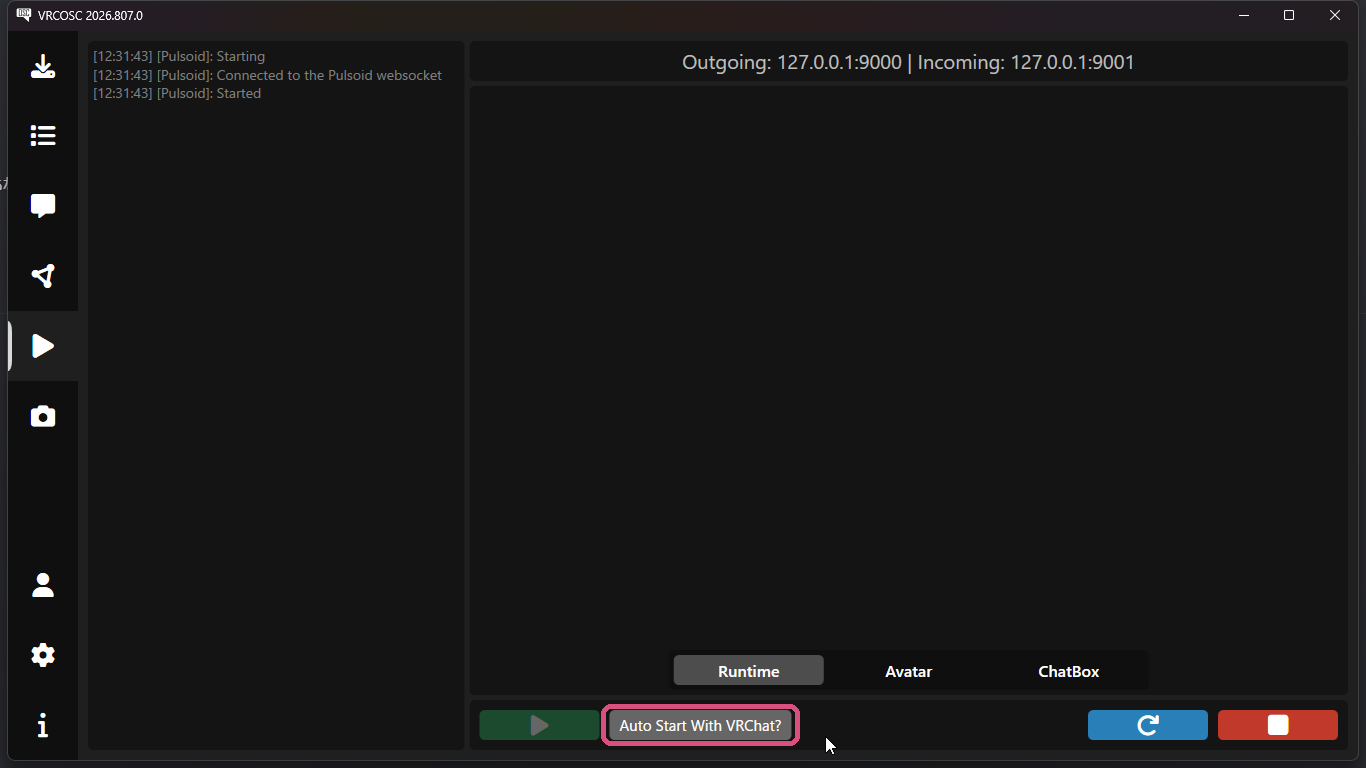
「Auto Start With VRChat?」を設定しておくと、次回からはVRChatの起動と同時にVRCOSCが自動で動きます(毎回▶を押す必要がなくなります)。
Set up "Auto Start With VRChat?" and VRCOSC will start automatically with VRChat from now on — no more pressing ▶.
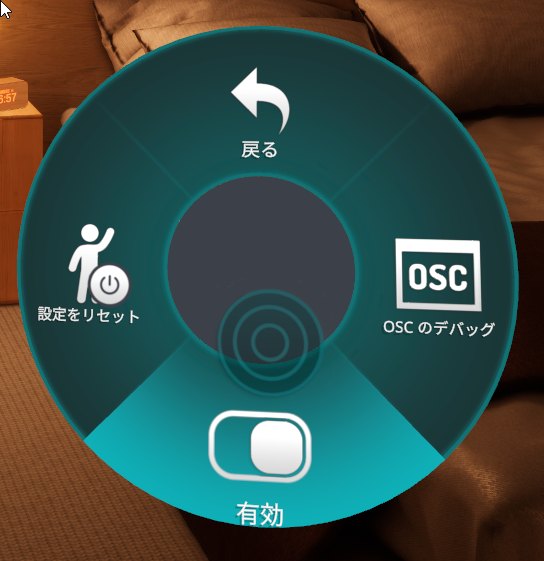
そのままVRChatを起動し、アクションメニュー(Rボタン/右スティック押し込み等)→ Options → OSC → 有効 をONにします。最初の1回だけでOKです。
Then launch VRChat and open the Action Menu → Options → OSC → Enabled. You only need to do this once.
6できあがりDone!
心拍が届き始めると、ペンダントは自動で心拍ページに切り替わります。胸元で数字が動いていたら完成です。
As soon as heart rate arrives, the pendant switches to the heart rate page automatically. If the number on your chest is moving — you're done.
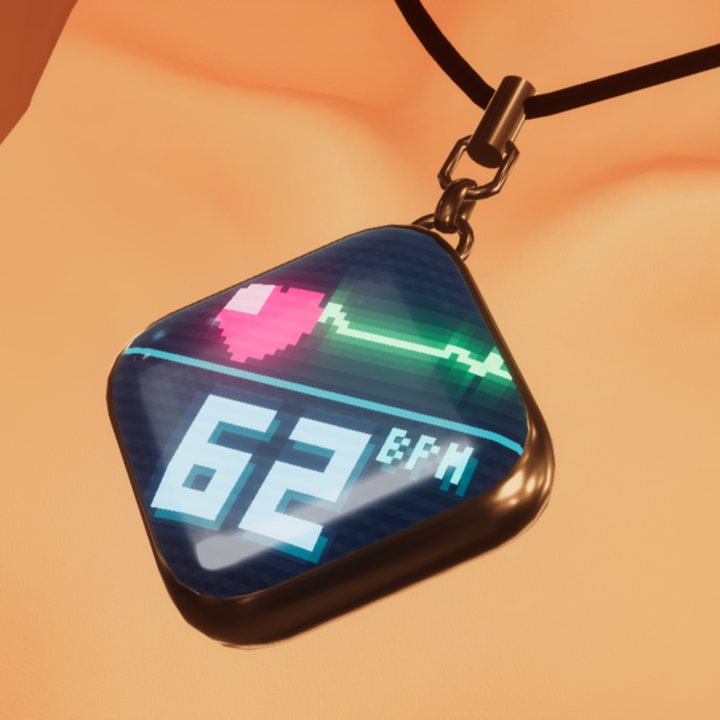
PIXEL PULSEはVRCOSCの心拍パラメータに標準対応しています。VRCOSC側のパラメータ設定を変える必要はありません。
PIXEL PULSE natively supports VRCOSC's heart-rate parameters — no parameter changes needed on the VRCOSC side.
?うまくいかないときIf it doesn't work
- Pulsoid(スマホ/Desktop)に数字が出ていない → 心拍計の装着・電池・Bluetoothを確認。まずはここが先です
- VRCOSCがエラーを出す → Pulsoidモジュールの連携(STEP 4)をやり直してください。連携するアカウントがSTEP 2と同じかも確認
- ペンダントに出ない → VRChatのOSC有効(STEP 5)を確認。それでもダメなら同じ画面の「設定をリセット(Reset Config)」を押してアバターを選び直してください
- 心拍計が他のアプリに接続されたままになっていないか → Bluetooth心拍計は同時に1つのアプリとしかつながりません(Pulsoidアプリと他の心拍アプリの併用は不可)
- もっと詳しく → 導入ガイドのよくある質問
- No number in Pulsoid (phone/Desktop) → check the monitor is worn properly, charged, and Bluetooth is on. This must work first
- VRCOSC shows an error → redo the Pulsoid module link (STEP 4) and make sure it's the same account as STEP 2
- Nothing on the pendant → check OSC is enabled (STEP 5). If it still fails, press "Reset Config" on the same OSC page and re-select your avatar
- Is another app holding the monitor? → a BLE monitor connects to only one app at a time
- More details → the FAQ in the main guide